
gProjectViewer
Housatonic SoftwareBusiness
2.023.00 Reviews
- Version
- 23.3.1204
- Installs
- 100.00K
- Age Rating
- Everyone
Screenshots
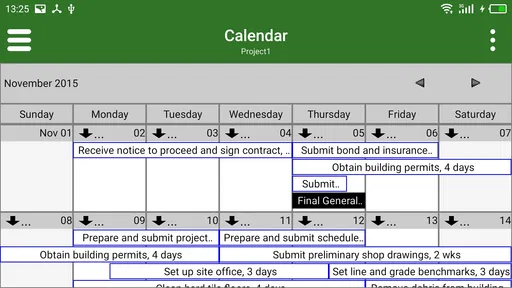
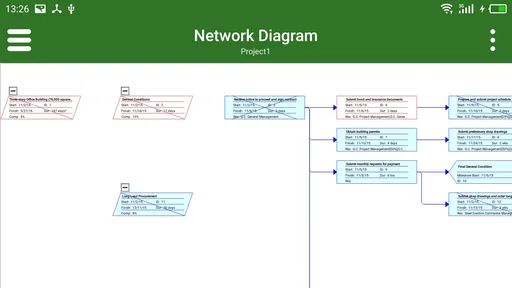
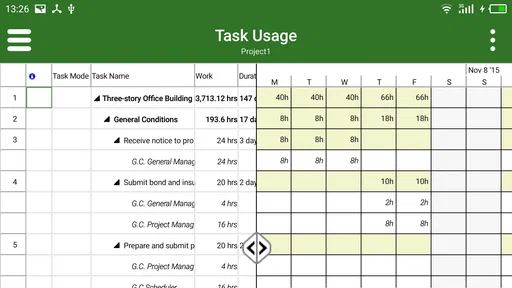
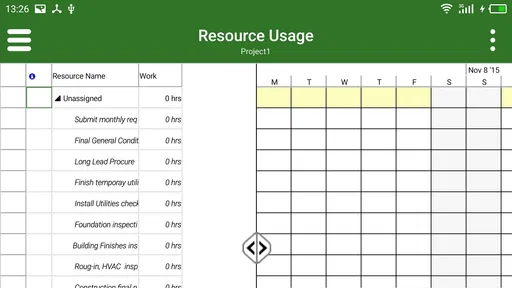
Our Review of gProjectViewer
 Analysis by Appyee
I found gProjectViewer most useful as a focused companion for people who need to open Microsoft Project files on an Android device without carrying a Windows computer everywhere. It is a business app from Housatonic Software, and its purpose is deliberately narrow: viewing MPP project files rather than replacing a full desktop project-management suite. That narrow role can be valuable, especially when a colleague sends a schedule while I am away from my desk.
My overall impression is mixed. The app can make a project schedule available in a more convenient setting, but the experience feels better suited to checking information than managing a project from start to finish. Its average rating is 2.0 from roughly 458 ratings, so I would not ignore the possibility of compatibility or usability frustrations. At the same time, its presence on more than 100K devices suggests that the basic need it addresses remains practical for a sizeable group of users.
How clearly the project information comes across
The first thing I would decide before installing it is whether I need to read an existing MPP file or actively edit and maintain a project plan. The app’s store summary presents it as a viewer, and that distinction matters. A viewer can be enough for reviewing task timing, checking a sequence of work, or confirming what was planned. It is a very different tool from Microsoft Project on a desktop, where creating dependencies, changing assignments, and restructuring a schedule are central activities.
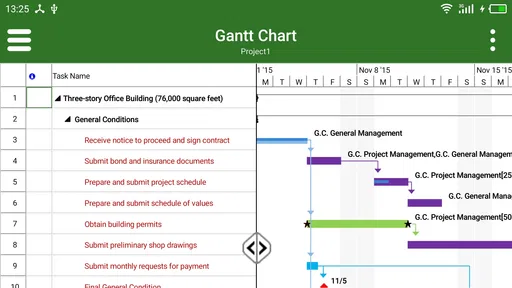
On a phone, readability depends heavily on the size and complexity of the project. A compact schedule with a manageable number of tasks is easier to inspect than a large plan containing many nested activities, long task names, and several layers of dependencies. I would approach the app as a way to consult a project, not as a replacement for a large monitor. The smaller screen naturally makes broad timeline comparisons and dense project hierarchies more demanding.
That leads to a useful habit: before opening a file in a rushed situation, I would ask the person who created it to keep important task names clear and concise. This is not a feature of the app, but it can make the difference between quickly locating a milestone and repeatedly zooming or scrolling through an overcrowded schedule. If I were preparing files for a team that relies on mobile review, I would also avoid hiding the key information inside overly deep task structures.
The app’s simple purpose may help some users because there are fewer decisions than in a full project-management environment. Someone who only needs to inspect a schedule does not have to learn an entire planning system before finding the relevant information. That simplicity is also the main limitation: users expecting a complete workspace may find the experience too restricted.
Reading a schedule when attention is limited
There are situations where a viewer is more useful than its feature list suggests. Imagine a site supervisor receiving an updated MPP file before entering a noisy work area. The immediate need may be to confirm which phase comes next, check the planned order of tasks, and identify whether a handoff is scheduled for the same day. A phone-based viewer can support that quick check without requiring a laptop to be opened in the middle of a busy routine.
For users with visual fatigue, I would keep expectations realistic. A phone screen can be easier to bring close and reposition than a desktop monitor, but dense schedules still require concentration. Reducing glare, increasing the device’s system text size where possible, and viewing the file in a quiet setting can help. These are practical adjustments rather than guarantees that every part of a complex project will become comfortable to read.
People who rely on strong visual separation may also find that project charts become harder to interpret when many bars or rows appear together. In that case, the best workflow is to open the file before the meeting, identify the specific task groups that matter, and use the app for confirmation rather than trying to understand an entire program at once. That small preparation step reduces the amount of navigation required under pressure.
Navigation, touch control, and different ways of working
Mobile project viewing introduces a physical issue that is easy to overlook: interacting with a schedule usually means tapping, scrolling, and possibly adjusting the view on a relatively small surface. Users with limited dexterity, tremors, hand pain, or difficulty making precise touches may find a detailed timeline tiring. I would not choose this app as the only way to access critical project information for someone who cannot comfortably perform repeated small gestures.
A practical workaround is to use the phone for short checks and a larger device for extended review. The app’s value is strongest when the question is specific: “What is scheduled next?” or “Which task follows this one?” It becomes less attractive when the job involves comparing many rows, following a long dependency chain, or reviewing a complete plan for an hour.
That distinction also affects users who prefer alternative input methods. A desktop environment generally offers more room for a mouse, keyboard shortcuts, and precise selection. A mobile viewer may be convenient for one-handed access, but convenience and control are not the same thing. If I needed to make frequent corrections or enter substantial information, I would move to a conventional project-management tool rather than forcing a touch interface to handle work it was not designed to make comfortable.
Sensory context matters as well. In a bright outdoor setting, reflections can make small schedule elements difficult to distinguish. In a crowded meeting, interruptions may make it harder to remember where I was in a large file. For a person who is sensitive to visual clutter or noise, the app works better as a prepared reference than as a tool for spontaneous exploration of an unfamiliar project.
Useful workflows beyond simply opening a file
One of the more useful ways to think about this app is as a mobile checkpoint for project communication. I would use it before a meeting to verify that the file I received is the expected version, then keep it available while someone discusses a task sequence. I would not rely on it to resolve disagreements about ownership or timing without checking the authoritative project source, because a viewer displays the file I have, not necessarily the latest file held by the project team.
A second workflow is helpful for people who travel between offices or work areas. Instead of printing a schedule, I could keep the relevant MPP file available on the phone and consult it when a question comes up. The trade-off is that a mobile copy can become outdated. I would therefore treat file organization as part of the process: use clear filenames, remove obsolete versions, and confirm the date or revision convention used by the team before relying on the schedule.
A third, less obvious use is as a review aid for people who do not normally operate Microsoft Project. A client, contractor, or department manager may need to inspect the plan without becoming a project scheduler. In that context, a viewer can lower the barrier to seeing the structure of an existing plan. It does not make the underlying project logic easy automatically, but it can be less intimidating than asking every occasional reviewer to learn a full authoring application.
These workflows work only when the file itself is suitable for viewing. A complicated plan with excessive detail can remain difficult regardless of the app. I would ask the project owner for a review-friendly copy when possible, particularly if the audience includes people who need a clear overview rather than every internal planning detail.
Where it fits beside familiar alternatives
The usual alternative is Microsoft Project on a desktop, and the comparison is straightforward. Desktop software is the better choice for building a schedule, editing task relationships, handling extensive project data, and working for long periods. gProjectViewer makes more sense when the main problem is access: I already have an MPP file and need to inspect it away from the main workstation.
Cloud-based project platforms offer a different model. They are often more suitable when several people need to collaborate, comment, update progress, and see a shared current version. A file viewer is simpler, but that simplicity means it does not replace a collaborative system. If my team’s work depends on live updates from multiple contributors, I would prefer the platform where the project is maintained rather than passing files between people.
Spreadsheet-based schedules can be easier for some users to customize, especially when the project is small and the team already understands the format. However, spreadsheets may not preserve the same project structure as an MPP file. If the goal is to inspect the original Microsoft Project plan without converting it, gProjectViewer has a clearer role. If the goal is flexible reporting or personal reshaping of the data, another tool may be more appropriate.
There is also a human factor. Some teams are comfortable discussing a schedule from a printed page or a PDF because everyone sees the same fixed layout. A mobile viewer is more portable, but it can make people gather around a small screen or interpret different parts of a large plan separately. I would use it for individual preparation and quick reference, while presenting a larger view during formal planning sessions.
Compatibility, cost, and practical expectations
The app is free to install, with optional in-app purchases listed from $0.99 to $39.99 per item. That makes it easy to try before deciding whether it fits a particular workflow, but I would check the purchase screen carefully before committing to any paid option. A free download does not automatically mean that every useful capability is available without payment, so anyone evaluating it for regular business use should test the files and tasks they actually handle.
It was released on June 11, 2013, and the current version is 23.3.1204. Its minimum operating-system requirement is Android 5.0, which covers a broad range of devices. Still, an older phone with a small display or limited performance may provide a less comfortable experience than a newer handset. I would judge it on the device that will be used in the field, not only on a modern test phone.
The Everyone content rating makes the app broadly suitable from an age-classification perspective. That does not answer the business questions that matter more here, such as whether a company’s file-handling rules permit project documents on a personal phone. Schedules can contain sensitive deadlines, names, costs, or operational details, so I would follow the organization’s own security and document policies before copying files to a mobile device.
File compatibility is another point I would test early. Since the app is intended for MPP files, I would open a representative sample rather than a tiny demonstration project. Try a simple plan, a nested plan, and a schedule with the kinds of dates and relationships used by the team. That test is more informative than assuming that every MPP file will behave identically on a mobile viewer.
Who will appreciate it, and who should skip it
I can recommend trying it to a project participant who mainly needs to consult schedules while travelling, visiting a worksite, or moving between meetings. It may also suit occasional reviewers who need to see an existing project plan without authoring one. For those users, the key benefit is access to a familiar project-file format in a portable setting.
I would be much more cautious for project managers who expect to edit plans continuously, for teams that require real-time collaboration, and for users who need extensive reporting or data entry. A desktop authoring tool or shared online workspace is likely to be a better fit. I would also skip it as the sole access method for anyone who finds small touch targets, dense timelines, or repeated scrolling physically difficult.
Its low average rating should be part of the decision, not a reason to dismiss it automatically. Ratings can reflect many different devices, files, and expectations, but a 2.0 average is a clear signal to test before depending on the app for an important meeting or field operation. I would install it, open a real but non-critical project file, and confirm that the information I need is legible and easy enough to reach.
A fair verdict for inclusive, on-the-go project review
gProjectViewer is best understood as a narrow access tool rather than a complete project-management environment. I like the idea of carrying an MPP viewer for quick schedule checks, and the free entry point makes a trial practical. Its strongest situation is a short, focused review where portability matters more than editing power.
Its inclusive value depends on context. A phone can help someone who cannot reach a workstation immediately, who needs a personal view of a schedule, or who benefits from bringing the screen closer. The same phone can create barriers through dense layouts, touch precision, glare, and limited space. I would pair it with a larger screen or the desktop source whenever the project is complex or the review session is long.
My recommendation is therefore conditional but useful: try it if your need is to inspect existing Microsoft Project files on Android, and test it with the real documents and device you intend to use. Do not choose it expecting a collaborative replacement for Microsoft Project or a full business planning system. The right question is not whether it can show a project, but whether it shows your project clearly enough in the situation where you need it.
For occasional mobile reference, that can be enough. For regular editing, shared updates, accessibility-sensitive work, or high-stakes planning, I would keep a more capable and comfortable alternative at the center of the workflow and use this app only as a supplementary viewer.
Verdict
Strengths of gProjectViewer
- Clear project timelines and task dependencies at a glance
- Supports common project-management file formats
- Useful for reviewing plans without editing the original data
- Helps identify scheduling conflicts and delayed tasks quickly
- Practical reference tool for teams and external stakeholders
Limitations of gProjectViewer
- Primarily a viewer, with limited project editing capabilities
- Compatibility may vary with complex or newer file versions
- Large project files can take longer to load on mobile devices
- Some advanced project details may be difficult to read on small screens
- Requires properly formatted source files for accurate display
Similar Picks in This Category
View All
LinkedIn: Community & Network
LinkedIn3.8

Zoom Workplace
zoom.com4.1

Microsoft Teams
Microsoft Corporation4.6

Meta Business Suite
Meta Platforms, Inc.4.6

Webex Meetings
Cisco Systems, Inc.4.5

TeamViewer Remote Control
TeamViewer4.4
Frequently Asked Questions
What is gProjectViewer and what can I use it for?
gProjectViewer is designed for viewing and reviewing project files on a mobile device, making it useful when you need to check schedules, tasks, timelines, or project details away from your computer. It is mainly a companion-style viewer rather than a complete project-management replacement, so its usefulness depends on the file formats and project sources you need to open.
Which project file formats does gProjectViewer support?
Before downloading, check the application’s current store description and compatibility notes because supported formats may vary between versions. gProjectViewer is intended for viewing project-management documents, but not every file created by desktop planning software will necessarily open perfectly. If you rely on a specific format, confirm that it is supported before transferring important files to the app.
Can I edit projects or only view them?
gProjectViewer is primarily focused on viewing project information rather than providing the full editing and planning tools found in professional desktop applications. You may be able to inspect schedules, assignments, or other project data, but advanced changes, resource management, and complete project creation features may be limited or unavailable. Treat it as a convenient reference tool unless the current version states otherwise.
Does gProjectViewer work without an internet connection?
Offline use generally depends on how the project files are stored and accessed. If a compatible file has already been downloaded or transferred to your device, basic viewing may be possible without an active connection. However, features involving cloud storage, file sharing, synchronization, or external services may require internet access. Test your files in advance if you expect to work while traveling.
Is gProjectViewer suitable for professional project management?
The app can be useful for managers, students, contractors, or team members who need quick access to project information while away from a desktop computer. Nevertheless, mobile viewing has practical limits, especially with large schedules and complex plans. For detailed editing, collaboration, reporting, or enterprise workflows, you may still need the original project-management software and should use gProjectViewer as a supporting tool.
